Social Media Templates for Business: Step-by-Step Guide
Learn how to create professional social media templates for business with this comprehensive step-by-step guide. Discover how to design branded templates in Canva, organize your workflow, and save 10+ hours weekly while maintaining visual consistency across all platforms.
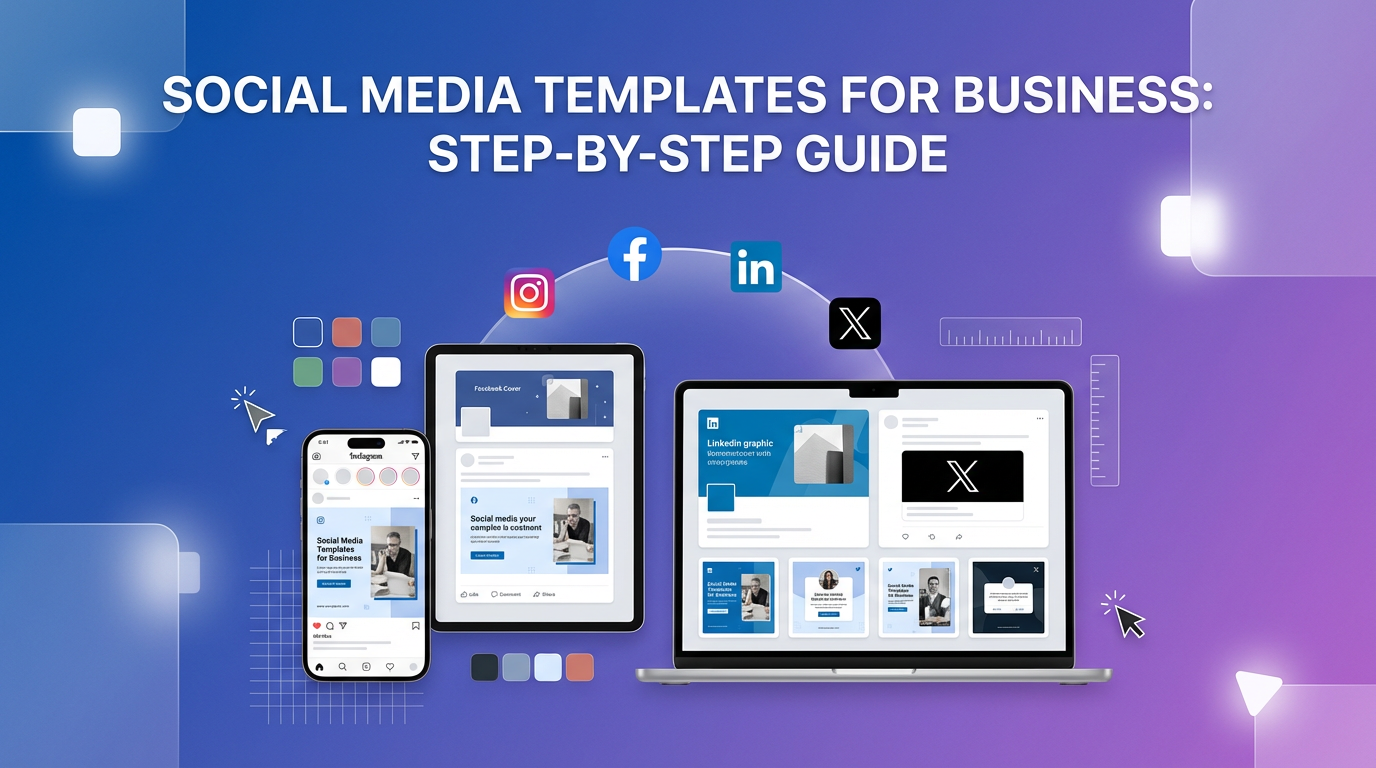
# Social Media Templates for Business: Step-by-Step Guide
Building a consistent brand presence on social media requires more than just great content—it demands visual consistency. **Social media templates for business** are the secret weapon that successful brands use to maintain professional aesthetics while saving hours of design time each week.
In this comprehensive tutorial, you'll learn how to create a complete suite of social media templates for business that elevate your brand and streamline your content creation process.
Why Your Business Needs Social Media Templates
Before diving into the creation process, let's understand the impact. Businesses using branded **social media templates for business** see up to 3x higher engagement rates and save an average of 10 hours per week on content creation. Templates ensure every post reinforces your brand identity, making your business instantly recognizable in crowded feeds.
Step 1: Define Your Brand Visual Identity
Start by establishing your brand foundation:
**Color Palette**: Select 3-5 core colors that represent your brand. Use tools like Coolors or Adobe Color to create harmonious combinations. Your primary color should appear in 60% of your designs, secondary in 30%, and accent colors in 10%.
**Typography**: Choose 2-3 fonts maximum—one for headlines, one for body text, and optionally one for accents. Ensure they're readable at small sizes since social media images are often viewed on mobile devices.
**Logo Placement**: Decide on consistent logo positioning. Most brands place logos in the top-right or bottom-right corner with 5-10% padding from edges.
**Brand Elements**: Identify recurring visual elements like patterns, icons, or graphic shapes that make your content uniquely yours.
Step 2: Audit Your Social Media Needs
Different platforms require different template types. Here's what most businesses need:
Create a spreadsheet listing which platforms you're active on and how many posts you publish weekly. This determines how many template variations you'll need.
Step 3: Set Up Your Canva Workspace
Canva is the ideal platform for creating **social media templates for business** because of its Brand Kit feature and template-saving capabilities.
**Create a Brand Kit**: Navigate to Brand Kit in Canva and upload your logo, define your color palette, and set your brand fonts. This ensures consistency across all templates.
**Organize with Folders**: Create folders for each platform (Instagram, LinkedIn, etc.) and subfolders for content types (quotes, tips, announcements, product features).
**Enable Canva Pro**: While not required, Canva Pro unlocks Brand Kit, background remover, and the ability to resize designs instantly—essential features for efficient template creation.
Step 4: Design Your First Template Set
Let's create a versatile Instagram post template:
1. **Create New Design**: Select "Instagram Post" (1080x1080px)
2. **Add Background**: Use your primary brand color or a subtle gradient
3. **Create Text Hierarchy**: Add a headline area using your brand font at 72-90pt
4. **Add Supporting Elements**: Include space for body text (36-48pt), your logo, and a decorative element
5. **Build Flexibility**: Use text boxes with placeholder text like "[Your Headline Here]" so you can easily swap content
6. **Add Branding Footer**: Reserve bottom 15% for your logo, website, or social handle
**Pro Tip**: Create 3-5 variations of this template with different background colors or layouts. This prevents your feed from looking repetitive while maintaining brand consistency.
Step 5: Create Platform-Specific Templates
Now expand to other platforms using the same design principles:
**LinkedIn Professional Posts**: Use cleaner layouts with more white space. LinkedIn audiences prefer data-driven content, so include space for statistics or key metrics.
**Instagram Stories**: Design vertical templates with interactive elements like polls or question stickers. Leave the top and bottom 250px clear to avoid overlap with Instagram UI elements.
**Pinterest Pins**: Create tall, eye-catching designs with bold headlines. Pinterest users are in discovery mode, so your templates should clearly communicate value at a glance.
Step 6: Build Content-Type Specific Templates
Beyond platform templates, create templates for specific content types:
Each content type should feel cohesive with your brand while serving its unique purpose.
Step 7: Save and Organize Your Templates
**In Canva**: Click "Share" → "Template Link" to create reusable templates. Save these links in a spreadsheet or project management tool.
**Create a Template Library**: Build a simple Google Doc or Notion page with thumbnail previews and links to each template. Organize by platform and content type for quick access.
**Version Control**: Name templates clearly: "IG-Post-Quote-Blue-v1" helps you track which version you're using and makes updates easier.
Step 8: Test and Refine
Before committing to your templates:
1. **Create 5-10 Sample Posts**: Fill templates with real content to see how they perform
2. **Check Mobile View**: 80% of social media is consumed on mobile—ensure text is readable
3. **Get Feedback**: Share samples with team members or trusted colleagues
4. **A/B Test**: Try different template variations and track which generates better engagement
Step 9: Streamline Your Workflow
Now that you have **social media templates for business**, optimize your process:
**Batch Content Creation**: Set aside 2-3 hours weekly to create all your social content at once using your templates. This is far more efficient than creating posts daily.
**Use Scheduling Tools**: Tools like Buffer, Hootsuite, or Later allow you to schedule posts in advance, maximizing your template investment.
**Create a Content Calendar**: Plan themes and topics in advance so you know which templates to use when.
Step 10: Maintain and Update Your Templates
Your templates aren't set in stone:
Ready-Made Template Solutions
If you're short on time or design experience, explore professionally designed **social media templates for business** at [DesignVault](https://designvault.abacusai.app/products). Our curated collection includes complete template suites for every major platform, designed by professionals and ready to customize with your brand.
Your Next Steps
Creating effective **social media templates for business** is an investment that pays dividends in time saved and brand consistency achieved. Start with one platform and one content type, perfect that template, then expand your library systematically.
Remember: the goal isn't perfection on day one—it's creating a sustainable system that makes your social media presence professional, consistent, and manageable. Your templates will evolve as your brand grows, and that's exactly how it should be.
What template will you create first? Start today and watch your social media workflow transform from chaotic to streamlined.
Tools to Put This Into Practice
Skip the DIY — these templates are built for exactly what you just read about.