Canva Templates for Coaches: A Step-by-Step Tutorial
Learn how to use Canva templates for coaches to build a professional brand in less time. This step-by-step tutorial covers setup, customization, and building a reusable template system.
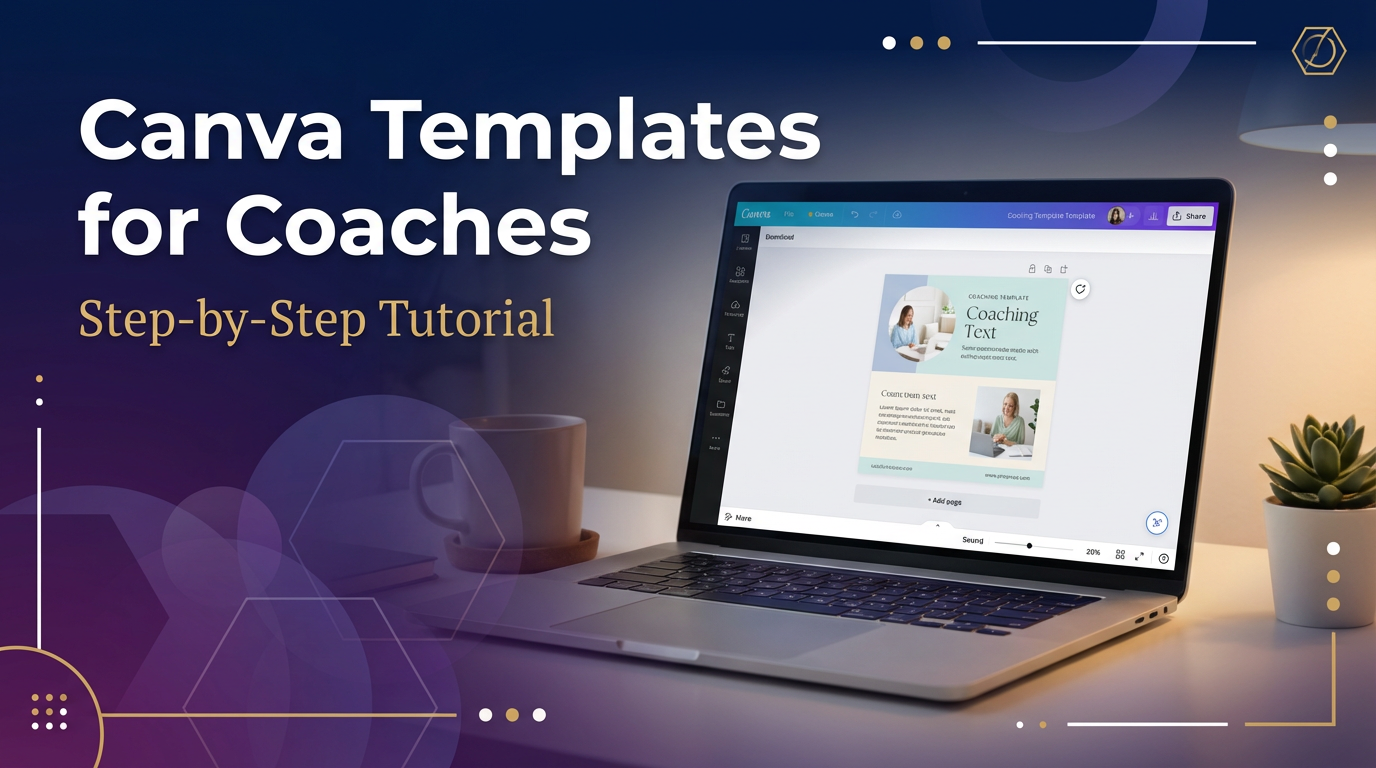
# Canva Templates for Coaches: A Step-by-Step Tutorial
If you're a coach trying to build a professional brand without hiring a graphic designer, **Canva templates for coaches** are your secret weapon. Canva makes it easy to create polished, on-brand visuals — but knowing *how* to use templates effectively can mean the difference between a brand that looks DIY and one that commands premium prices.
In this step-by-step tutorial, you'll learn exactly how to find, customize, and deploy Canva templates for coaches to elevate your brand, attract ideal clients, and save hours of design time every week.
---
Why Coaches Need Professional Design Templates
Before we dive into the how-to, let's talk about why design matters for your coaching business.
Your visuals are often the first impression a potential client gets of you. A cohesive, professional brand communicates credibility, expertise, and trustworthiness — all before a single word is read. Studies show that consistent brand presentation can increase revenue by up to 23%.
The challenge? Most coaches aren't designers. That's where **Canva templates for coaches** come in. Pre-built, professionally designed templates give you a head start so you can focus on your message, not the pixels.
---
Step 1: Set Up Your Canva Brand Kit
Before you start customizing any template, set up your Brand Kit inside Canva. This ensures every design you create stays consistent.
**How to do it:**
1. Log in to Canva and click on your profile icon in the top right.
2. Navigate to **Brand Kit** (available on Canva Pro).
3. Upload your logo, set your brand colors (use your exact hex codes), and choose your brand fonts.
4. Save your Brand Kit — Canva will now suggest these elements whenever you edit a template.
**Pro tip:** If you don't have a Brand Kit yet, choose 2-3 colors and 2 fonts (one for headings, one for body text) and stick to them across all your materials.
---
Step 2: Find the Right Canva Templates for Coaches
Not all templates are created equal. You want templates that are designed with a coaching audience in mind — clean, professional, and easy to adapt.
**Where to find great coaching templates:**
**What to look for in a template:**
---
Step 3: Customize Your Template to Match Your Brand
Once you've chosen a template, it's time to make it yours. Here's how to customize **Canva templates for coaches** efficiently:
**3a. Apply Your Brand Colors**
**3b. Swap Out Fonts**
**3c. Replace Placeholder Text**
**3d. Add Your Logo**
**3e. Swap Images (If Applicable)**
---
Step 4: Create a Template System for Consistency
One of the biggest mistakes coaches make is designing each piece of content from scratch. Instead, build a **template system** — a set of master templates you reuse and adapt.
**Recommended template types for coaches:**
Once you've customized these five templates with your brand, you have a complete visual system. Every new piece of content becomes a 5-minute job instead of a 45-minute ordeal.
---
Step 5: Save and Export Your Designs
When your design is ready, it's time to export it in the right format.
**Export settings by use case:**
**Saving your template for reuse:**
---
Step 6: Build a Content Calendar Around Your Templates
Having great **Canva templates for coaches** is only half the battle — you also need a system for using them consistently.
**Simple content calendar approach:**
1. Plan your content themes for the month (e.g., Week 1: Mindset, Week 2: Strategy, Week 3: Client Results, Week 4: Offers).
2. Batch-create your designs at the start of each week using your template system.
3. Schedule posts using a tool like Buffer, Later, or Metricool.
4. Repurpose each design across platforms — one Instagram post can become a Pinterest pin, a Facebook graphic, and an email header with minor adjustments.
---
Ready to Elevate Your Coaching Brand?
Using **Canva templates for coaches** doesn't just save you time — it transforms how potential clients perceive your business. A polished, consistent brand signals that you're serious, professional, and worth investing in.
Whether you're just starting out or looking to refresh your existing brand, the right templates give you a massive head start. Explore our full collection of professionally designed coaching templates at [DesignVault](https://designvault.abacusai.app/products) and find the perfect fit for your brand today.
Start designing smarter — not harder.
Tools to Put This Into Practice
Skip the DIY — these templates are built for exactly what you just read about.